How to Split a PDF Into Separate Files or Pages
Why Split a PDF Instead of Sending the Whole Thing
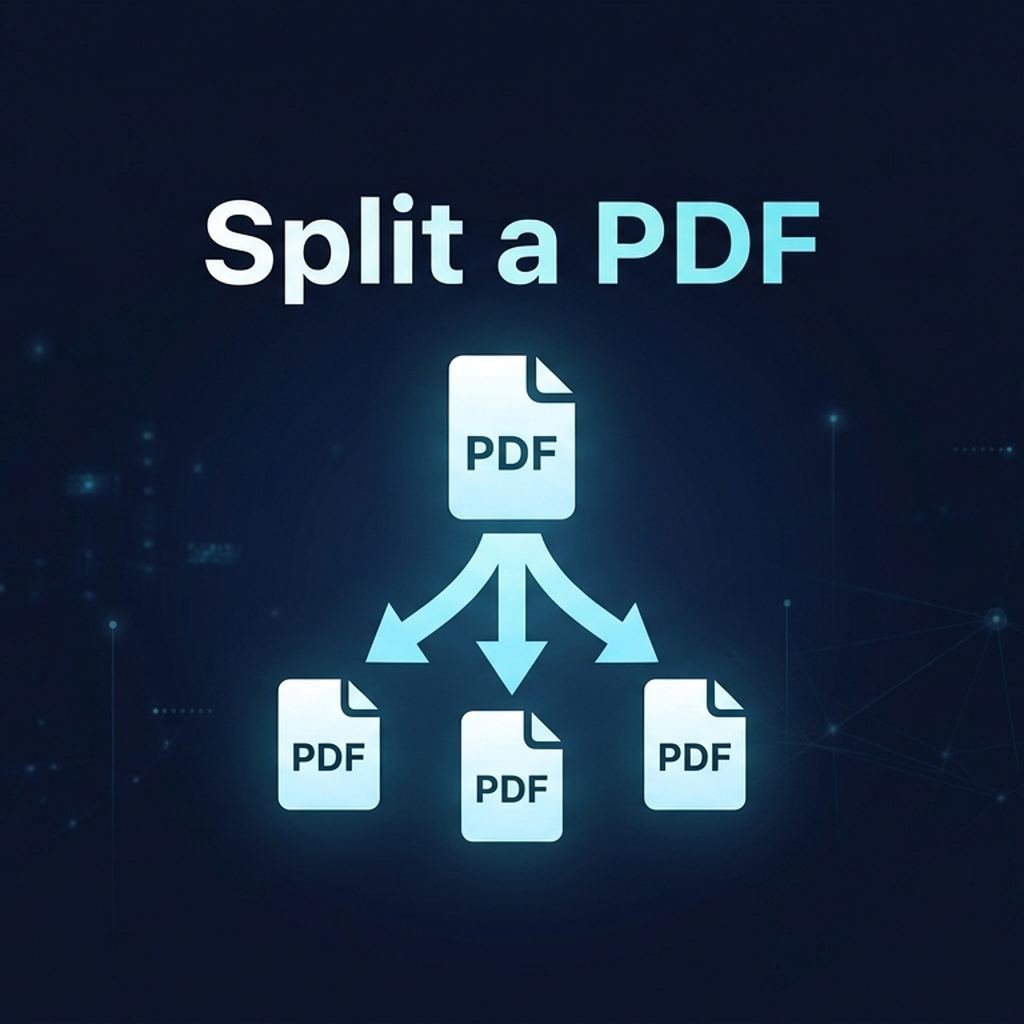
A 200-page report often contains exactly one chapter someone actually needs — sending the entire file forces the recipient to hunt for the relevant pages themselves, and needlessly exposes the rest of the document's content. Splitting extracts just the pages that matter, whether that's a single page, a range, or every page as its own separate file.
Step-by-Step: Splitting a PDF
- Open the tool: Go to Split PDF (DCPixel PRO).
- Upload your document: Pages load locally for preview.
- Choose your split method: Extract a specific page range, split at a chosen page number, or separate every page into its own file.
- Download: Get the extracted range as a single PDF, or every page as individual files in a ZIP archive.
Common Use Cases
- Extracting one chapter or section from a long report to share separately
- Separating a scanned batch of documents (multiple forms scanned into a single PDF) back into individual files
- Removing a specific page before sharing — split around it and reassemble with Merge PDF
- Reducing file size for upload limits by sending only the relevant pages instead of the whole document
Splitting and Merging Together
Split and merge are complementary operations: split a document down into individual pages, reorder or select the ones you need, then use Merge PDF to reassemble exactly the subset and order you want. Together they give you full control over a PDF's structure without needing a heavyweight desktop editor.
Why Process This Locally
Documents worth splitting out selectively are often documents with sections you specifically don't want exposed in full — contracts, reports, scanned personal records. DCPIXEL splits every page locally via WebAssembly; nothing is uploaded to a server at any point.
Conclusion
Splitting a PDF turns an unwieldy multi-page document into exactly the pages a recipient needs — no more, no less. DCPIXEL handles it entirely in your browser, with the full document never leaving your device.
Written by Dalto
Dalto is the founder of DCOUTLIER and creator of DCPIXEL. He specializes in browser performance, WebAssembly, and privacy-first web development.
Try DCPIXEL's Tools
Experience client-side processing with DCPIXEL — no data collection. 3 tools free, 170+ more with PRO.